
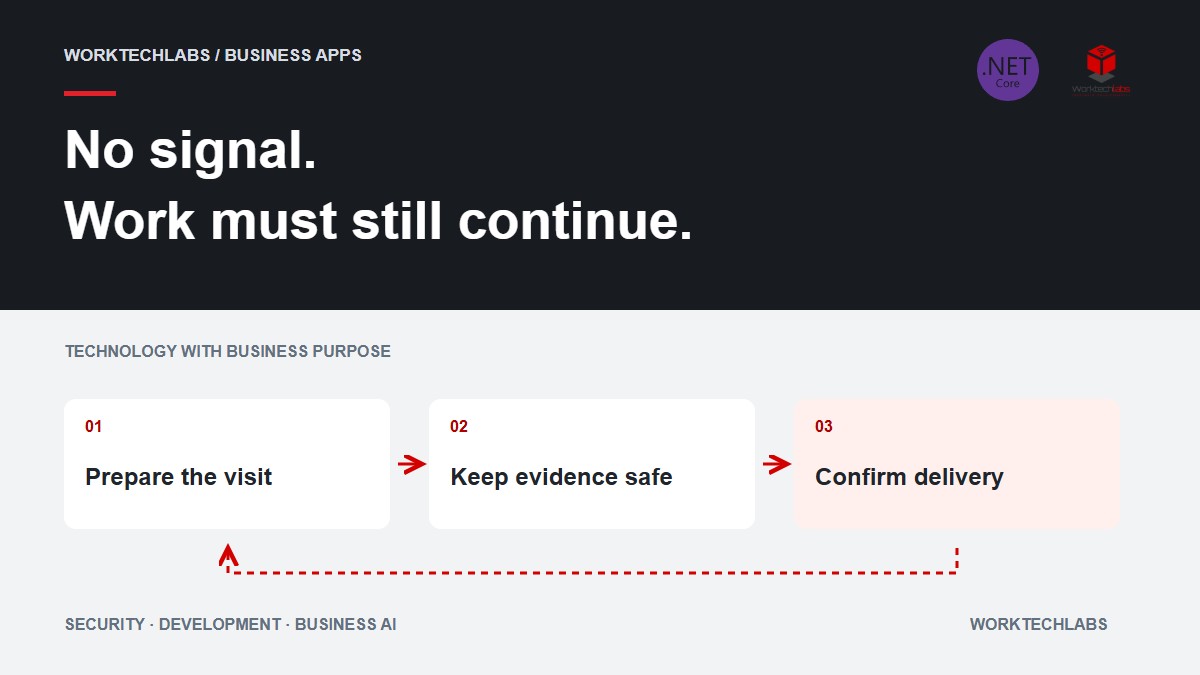
Yes, a field-service application can support useful work without a constant internet connection. The important qualification is which tasks work offline, which information has already reached the device and what happens when the device reconnects. A product described as “mobile” does not automatically answer those questions.
For a UK maintenance, inspection or installation business, unreliable coverage can delay evidence, job completion and invoicing. Before buying software, ask suppliers to demonstrate a complete visit with the connection switched off. The buying decision should rest on observable behaviour, including interruptions and recovery, rather than a tick beside “offline supported” in a feature comparison.
1. Define the offline journey your team actually needs
Choose one representative job and write down what the technician must do from arrival to departure. That might include reading asset history, following a checklist, entering measurements, recording materials, taking photographs and capturing a customer's acknowledgement. Mark each task as required offline, useful offline or acceptable only when connected.
Also define what must be downloaded beforehand. An application cannot fetch a newly assigned job from the office while it has no communication path. Ask what happens when the schedule changes after a technician leaves coverage and how the interface describes potentially outdated information. Establish the fallback for urgent changes that the app cannot receive.
Microsoft's Field Service offline documentation explains that an administrator configures the data available offline. Treat this as an example of a product-specific setup requirement, not a promise that every field-service product behaves identically. Request evidence for the exact app experience, device platform and version you are considering.
2. Run the demonstration with the network disabled
Ask the supplier to prepare the assigned job, disconnect the device and let a technician perform the visit. Close the application halfway through and reopen it. Then restart the device. The entered work should behave according to the agreed saving rules, and the technician should be able to explain what is still stored locally.
Repeat the test with an interrupted connection rather than only a clean switch between online and offline. Reconnect during submission, interrupt it again and resume. Ask whether the office receives one report or several. A successful screen message should correspond to a clearly defined outcome, not merely the start of an upload.
Keep a short acceptance record with the device, operating system, application version and result. Include a normal technician account instead of relying only on an administrator's permissions. Ask for any configuration or additional development needed to reproduce the demonstration in your environment, with responsibility and cost recorded in the proposal.
3. Check photographs, signatures and attachments separately
Small form fields and large files place different demands on storage and synchronisation. Ask the technician to capture several realistic photographs, annotate one if that is required and attach the evidence to the correct job. Test low storage and an interrupted upload. The app should show which required files remain pending and provide a recoverable next step.
For a captured signature or acknowledgement, establish what the customer is agreeing to, which document version it belongs to and whether that record can be altered afterwards. A signature image alone does not explain the meaning of an approval. If a particular legal or contractual assurance is required, include that requirement explicitly when choosing the signature service and workflow.
Agree when the office can invoice. Is a submitted report sufficient, or must every required photograph and acknowledgement be received first? Ask for visible evidence of completeness. The customer service team should not need to ring the technician merely to discover that the final attachment is still waiting on a phone.
4. Make synchronisation and conflicts understandable
Look for distinct states such as saved on this device, waiting to send, received by the office and needs attention. Ask users what each state means without coaching them. If they cannot tell whether the office has the work, the interface is not giving your business enough information to rely on it.
Create a deliberate conflict during the trial. Have the office change the job while the technician is offline, then reconnect. Ask which changes can coexist, which need review and who makes the decision. A cancelled job, changed price and new technician note do not necessarily deserve the same conflict rule.
Check failed submissions as well as successful ones. Rejected permissions, missing records and invalid values need a correction path that preserves useful work. The supplier should explain how repeated attempts avoid duplicate reports. For a deeper design explanation, see our article on keeping field work safe until the office receives it.
5. Verify the office and ERP handover
Follow the completed visit into the office system. Check that labour, materials and attachments reach the intended records and that the receiving system acknowledges them. Identify which application owns job status, customer details and prices. Conflicting ownership can create repeated corrections even when the mobile upload itself succeeds.
Ask whether the integration is immediate, scheduled or manually initiated, and how staff discover failures. If the ERP is unavailable, the work should have an agreed holding state and a safe way to resume. Include reconciliation: the office needs to find jobs accepted by the mobile platform but not yet recorded in the ERP.
Product limitations deserve a separate review. Microsoft documents offline-profile limitations for Dynamics 365 Field Service, including operations that need connectivity. Use the relevant vendor's current documentation to check every critical requirement. A customisation demonstrated online should not be assumed to work offline without a separate test.
6. Include device management and support in the purchase
Ask which information remains on the device, how access is protected and when local copies are removed. Discuss a lost device, a damaged phone and a member of staff leaving. Remote instructions cannot reach a disconnected device immediately, so the proposed controls must account for local access and the time before it reconnects.
Define the route for recovering unfinished work before replacing or resetting a device. Support should understand the distinction between a job stored locally and one already accepted by the server. Ask which diagnostic information can be collected without exposing customer photographs or sensitive notes unnecessarily, and who is allowed to access it.
For UK operations, agree support hours around actual visits, including early starts and any weekend work. Check app-store updates, operating-system support, device replacement and training responsibilities. Ask how a change to the office system is tested against mobile versions that may remain installed on devices for a period of time.
7. Buy against a written pilot result
Turn the checklist into a small pilot with representative technicians, job types and locations. Record lost or duplicated submissions, time spent correcting data, unresolved synchronisation errors and the delay before the office can use completed work. Set acceptable outcomes with your team before the pilot, rather than choosing a threshold after seeing the results.
Compare the full cost: licences, devices if needed, configuration, integrations, training, rollout and ongoing support. Ask which acceptance tests will become part of the delivery agreement. A lower subscription price is difficult to assess if essential offline behaviour requires unpriced custom work or the office must continue reconstructing every report manually.
Worktechlabs can help assess the workflow, build .NET business applications and connect field activity to the office through ERP integrations. Bring an example job, the required evidence and the systems receiving it. Discuss an offline application project so the first phase proves the complete handover under the conditions your technicians actually face.
Official sources and further reading